Kinemaster Green Apk Download
The Grass is Greener with the Right Video Editing App with Green Screen
Master green screen effects with the best video editing app with green screen. Learn chroma key, background removal, and pro tips for stunning videos!

How a Video Editing App with Green Screen Uses Chroma Key Technology
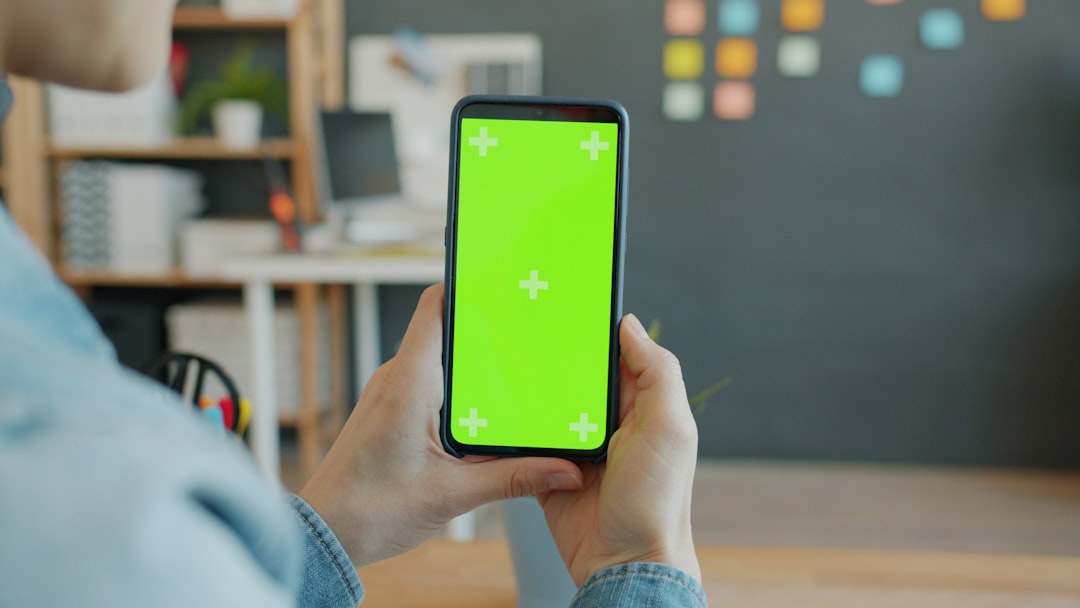
To understand why you need a specific video editing app with green screen, you first have to understand the “magic” of chroma key. Chroma key is a visual effects technique that isolates a specific color hue in a video—usually a bright neon green or a deep cobalt blue—and makes it transparent. Once that color is “keyed out,” you can place any other image or video layer behind it.
Why green? Digital cameras are highly sensitive to green light, making it the easiest color to clean up digitally with minimal “noise.” Furthermore, green is rarely found in human skin tones or hair, which prevents the app from accidentally making the presenter’s face transparent!
When you use a professional-grade video editing app with green screen, the software doesn’t just “erase” the color. It uses complex algorithms to handle:
- Spill Suppression: This prevents the green light from reflecting onto the subject’s skin or clothes, which can cause a sickly “glow” around the edges.
- Lighting Uniformity: Advanced apps can compensate for a screen that isn’t perfectly lit, identifying the green even if there are slight shadows or wrinkles in the fabric.
- Digital Compositing: This is the process of layering the foreground (you) over the background (the Eiffel Tower, a digital office, or a futuristic sci-fi city) so they look like they belong together.
Essential Features of a Professional Video Editing App with Green Screen
Not all apps are created equal. Some simply slap a filter on your video, while others provide a full suite of professional tools. When we look for the best video editing app with green screen, we prioritize features that give you “pixel-perfect” control.

| Feature | AI Background Removal | Traditional Chroma Key |
|---|---|---|
| Requirement | No physical screen needed | Requires green/blue backdrop |
| Precision | Good for hair/complex edges | Highest precision if lit well |
| Speed | Instant / One-click | Requires manual adjustment |
| Flexibility | Limited to “people” usually | Can remove any specific color |
| Device Power | Requires high-end AI chips | Works on most mid-range phones |
Choosing the Best Video Editing App with Green Screen for Beginners
If you are just starting out, you don’t want to be overwhelmed by technical jargon. The best video editing app with green screen for a novice should offer a “one-click” experience. We look for apps that feature a dedicated green screen maker tools section where you can simply tap the color you want to remove.
Key beginner features include:
- Intuitive User Interface: A clean timeline where you can see your layers clearly.
- Stock Backgrounds: A library of pre-made environments so you don’t have to go hunting for copyright-free images.
- Drag-and-Drop Functionality: Moving your layers should be as simple as sliding your finger across the screen.
- Built-in Tutorials: Apps that guide you through your first “keying” project ensure you don’t get frustrated.
Advanced Techniques for Your Video Editing App with Green Screen
For the pros, the “one-click” button is just the beginning. To make a video look truly cinematic, you need to dive into the settings. Professional editors use a video editing app with green screen to access:
- Masking and Mask Brushes: If your physical green screen didn’t cover the whole wall, you can “mask out” the edges of the room that weren’t green.
- Color Correction: After removing the background, you often need to adjust the brightness and contrast of the subject to match the new background.
- Stunning visual effects: Adding a slight “blur” to the background (Depth of Field) makes the subject pop and looks more like it was shot on an expensive DSLR.
- Motion Tracking: If your camera moves, your background needs to move with it. High-end mobile apps now offer keyframe animation to sync these movements perfectly.

Creative Ways to Use Green Screen Effects in Your Content
The beauty of a video editing app with green screen is that it unlocks creative possibilities that were once restricted to big-budget film studios. Here is how our community is using these tools:
- Virtual Travel: Want to host a travel vlog from the moon? Or perhaps a beach in Bali? With a green screen, you can “travel” anywhere without a passport.
- Educational Storytelling: Teachers use apps like Green Screen by Do Ink (which won the AASL Best App for Teaching award in 2019) to transport students into historical scenes or inside a human cell.
- Gaming Overlays: If you’re a streamer, you can remove the background of your bedroom so that only your head and shoulders appear over your gameplay—just like the pros on Twitch.
- Professional Presentations: Turn a messy living room into a sleek, high-tech corporate office for your LinkedIn videos or sales pitches.
- Social Media Trends: Whether it’s the “cloning” effect where you talk to yourself or placing yourself inside a viral meme, these apps make it happen in seconds.
Step-by-Step: Mastering Background Removal on Mobile
Ready to try it yourself? Most top-tier apps follow a similar workflow. Here is how we recommend you set up your project for success:

- Footage Preparation: Ensure your green screen is well-lit and wrinkle-free. Shadows are the enemy of a clean “key.”
- Layering: In your video editing app with green screen, place your background on the main track and your green screen footage on the layer above it (the overlay).
- The Eyedropper Tool: Open the Chroma Key settings and use the eyedropper to select the exact shade of green from your video.
- Sensitivity Adjustment: Use the “Tolerance” or “Sensitivity” sliders to fine-tune the edges. You want to remove all the green without making your subject’s hair look “crunchy.”
- Refine Edges: Use “Spill” or “Softness” settings to blend the subject into the new environment.
- Export: Save your video. Apps like KineMaster allow for 4K resolution exports, ensuring your hard work looks crisp on any screen.
Frequently Asked Questions about Green Screen Apps
Do I need a physical green screen to remove my background?
While a physical screen (even a green bedsheet!) gives the most professional results, many modern apps now use AI-powered “Smart Removal” to cut out people without any backdrop at all. However, for complex movements or professional quality, a physical screen is still the gold standard.
What is the difference between green and blue screens?
Technically, very little. Blue screens were the original choice for film because they were easier to process chemically. Today, green is more popular because digital sensors are better at seeing green, and it requires less light to illuminate properly.
Can I edit green screen videos on my smartphone for free?
Yes! Many apps offer free versions. However, they often come with limitations like watermarks or restricted export resolutions. This is why many users look for KineMaster APK downloads, which provide access to premium features like no watermarks and 4K exports for free.
Conclusion
The “grass is greener” when you have the right tools at your fingertips. Whether you are a teacher, a YouTuber, or a small business owner, a video editing app with green screen is the ultimate shortcut to professional-looking content.
By using apps that offer advanced features like multi-layer editing, chroma key precision, and high-resolution exports, you can transform any space into a professional studio. If you’re looking for the most powerful mobile experience, we recommend exploring the premium features of KineMaster. With the right APK, you can bypass subscriptions and unlock the full potential of your creativity.
For more info about mobile video editing services and to download the latest tools to start your green screen journey, visit our site today. Happy editing!











 Best Kinemaster MODs8 months ago
Kinemaster for Beginners: Your First Video in 15 Minutes (No Experience Needed)

 Kinemaster Black2 years ago
KineMaster Black Download Latest Version v8.5

 Red Kinemaster Download2 years ago
Red Kinemaster Download Apk Latest Version v7.4.11.32428.GP Without Watermark
- Kinemaster Old Version2 years ago
KineMaster Old Versions 7.4.10.32410.GP Without Mark
- Kinemaster Diamond Mod Apk2 years ago
Kinemaster Diamond Mod Apk Download Pro Version V7.4.0.32260.GP
- Kinemaster without watermark2 years ago
Kinemaster without watermark Download Latest Version 4.15.5.17370.GP
- Best Kinemaster MODs11 months ago
kinemaster pro apk download 2025 full unlocked + no watermark kinemaster mod apk
- Kinemaster Blue Apk2 years ago
Kinemaster Blue Apk Download Without Watermark | Latest Version]