Kinemaster
Navigating the World of Video Editing App Green Screen Options
Master video editing app green screen on Android: Chroma key tips, AI removal, pro setups & KineMaster tutorials for stunning visuals.

Why Finding the Right Video Editing App Green Screen Matters
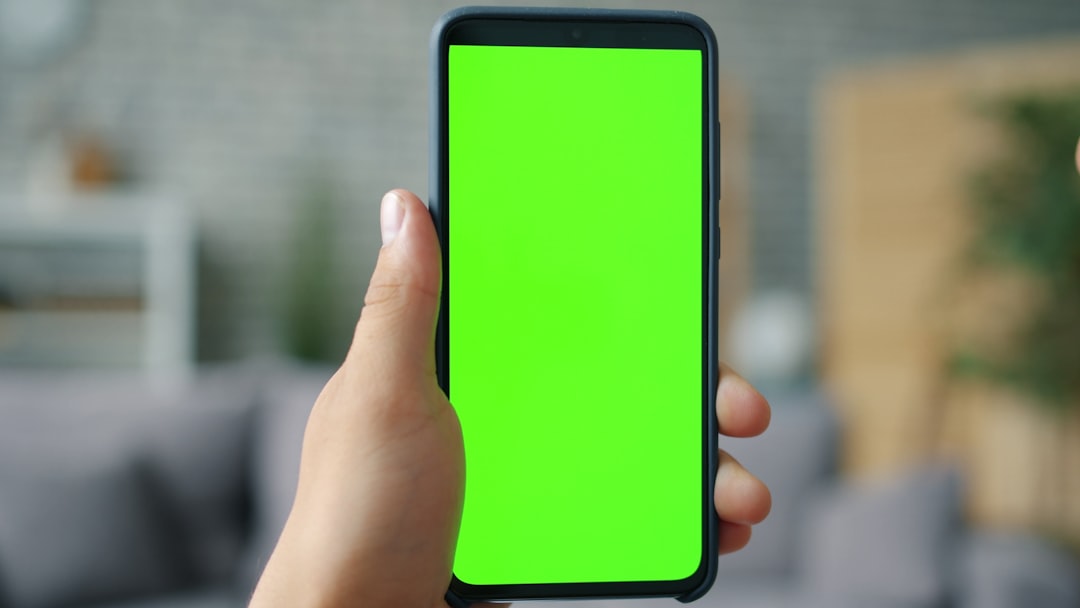
A video editing app green screen lets you replace any background in your footage with images, videos, or virtual environments — all from your phone. Whether you are a social media creator, an educator, or a professional editor, having the right tool is essential for high-quality production.
Green screen technology — also called chroma keying — works by removing a specific color (usually green) from your video and replacing it with any background you choose. It’s the same technique used in Hollywood blockbusters and TV weather forecasts, and it’s now available right on your smartphone.
Choosing the wrong app can mean dealing with watermarks on your exports, confusing interfaces, or paywalls that lock the features you actually need. With so many options out there, it’s easy to feel stuck before you even start editing.
I’m Faisal Shahzad, a mobile video editing specialist focused on helping creators find the right video editing app green screen tools — especially powerful options like KineMaster APK that deliver premium results without the premium price tag. In the sections below, I’ll walk you through everything you need to make the right choice.
Essential Features of a video editing app green screen Tool
When we dive into mobile compositing, we aren’t just looking for a button that says “remove background.” We are looking for a suite of professional tools that ensure our subject doesn’t look like a cardboard cutout slapped onto a postcard. A high-quality video editing app green screen tool must handle the nuances of light and color.
The heart of this process is the Chroma Key engine. This technology identifies a specific color hue—most commonly a bright “neon” green—and makes it transparent. However, the best apps go further by offering Spill Suppression. Have you ever noticed a weird green glow around a person’s hair or shoulders when they stand in front of a green screen? That’s “spill.” Professional tools allow us to neutralize that reflected light so the subject blends naturally into the new environment. You can learn more about the physics of light and color theory to improve your keys.
Another must-have is Multi-layering. To create a convincing scene, you often need more than just a background and a foreground. You might need a background layer, a middle-ground element (like a desk), the green screen subject, and then perhaps an adjustment layer or an overlay (like dust motes or light leaks) on top. For a deep dive into mastering these layers, check out Chroma Key in KineMaster: 13 Steps to Stunning Visuals.
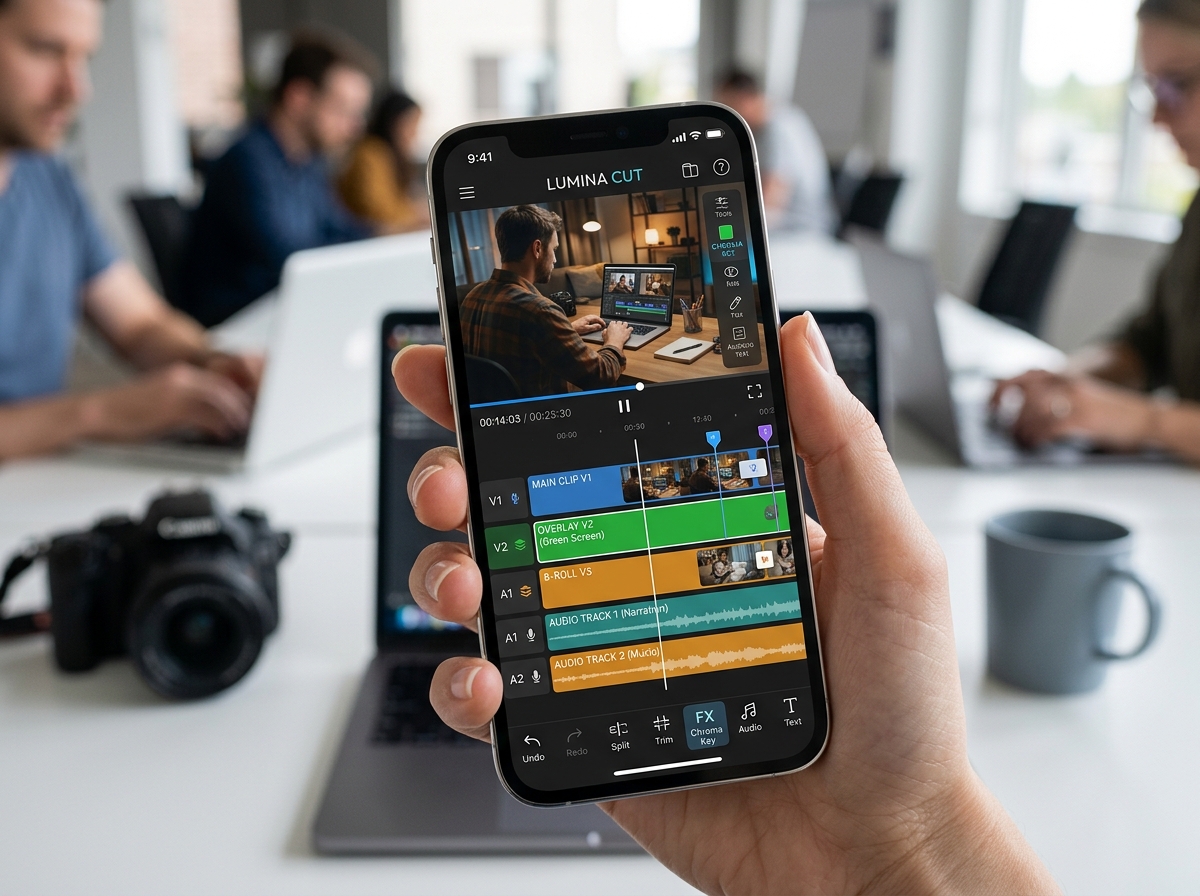
How to Choose the Best video editing app green screen for Android
Android users are spoiled for choice, but not every app is created equal. When we evaluate an app, we look at four main pillars:
- User Interface (UI): Is the timeline intuitive? Can you pinch-to-zoom for frame-by-frame precision? If the interface is cluttered, your creative flow will suffer.
- Export Resolution: Many “free” apps cap your resolution at 720p. For professional-looking content, especially for YouTube or large screens, you want an app that supports 4K export.
- Processing Speed: Chroma keying is hardware-intensive. A good app should offer smooth playback even when you have multiple layers active.
- Real-Time Preview: You shouldn’t have to wait for a render to see if your key is clean. You need to see adjustments to the “strength” and “softness” sliders in real-time.
For a broader look at the landscape, see our guide on the Top Five Video Editing Apps for Android.
Key Features for Professional Background Replacement
If you want to move beyond basic memes and create cinematic content, you need granular control. This is where Masking tools and Blending modes come into play. Masking allows us to “garbage matte” out parts of the frame that weren’t covered by the green screen, such as a light stand peeking into the corner.
Fine-tuning edges is also vital. A “softness” slider helps blur the boundary between the subject and the new background, preventing that harsh, digital look. Furthermore, Color Correction is the secret sauce. If your background is a sunset but your subject was filmed in bright white light, they won’t match. You need tools to adjust the brightness, contrast, and warmth of individual layers to achieve a cohesive look. Learn more about these high-level techniques in Professional Video Editing: Fast & Easy.
Technical Setup for Professional Chroma Keying
Even the most advanced video editing app green screen tool will struggle if your raw footage is poor. The “magic” of chroma keying is actually 70% lighting and 30% software.
To get a clean key, your green screen must be evenly lit. Shadows or “hot spots” (areas that are too bright) change the shade of green, making it impossible for the software to pick a single color to remove. We recommend using a three-point lighting setup: two lights dedicated solely to the green screen to wash it in even light, and a separate light (or lights) for your subject.
Fabric tension is another pro tip. If your green screen has wrinkles, those wrinkles create shadows. Use clamps to pull your fabric tight. Finally, keep your subject at least 3 to 6 feet away from the screen to minimize green light bouncing back onto their skin.
Green Screen vs. Blue Screen: Which Should You Use?
While green is the standard for digital sensors because they are more sensitive to green light (requiring less illumination), blue screens are still used in specific scenarios.
| Feature | Green Screen | Blue Screen |
|---|---|---|
| Lighting Needs | Low (Very bright) | High (Requires more light) |
| Color Spill | High (Bright green glow) | Low (Easier to hide) |
| Best For | Digital Cameras/Mobile | Film/Darker Scenes |
| Clothing Conflict | Avoid green clothes | Avoid blue clothes |
Advanced Editing Techniques and AI Background Removal
As we move into 2026, the technology is shifting. We are seeing the rise of AI-powered background removal. Some modern apps now offer “Smart Background Removal” or “Magic Remover” tools that don’t even require a physical green screen. These tools use neural networks to identify the human form and separate it from the background.
While AI is convenient for quick social media posts, it often struggles with fine details like frizzy hair or transparent objects (like a glass of water). For professional work, a physical green screen combined with a high frame rate (like 60fps) ensures the sharpest edges. When you combine these advanced techniques with 4K export, the results are indistinguishable from desktop-class editing.
Optimizing Your video editing app green screen Workflow
Efficiency is key when editing on a mobile device. We recommend utilizing an Asset Store to find high-quality background videos and overlays quickly. Instead of scouring the web for a “cyberpunk city” background, many professional apps provide these within the interface.
Keyframe animation is another advanced trick. If your background is a moving shot, you can use keyframes to move your subject in sync with the background, creating a realistic sense of motion. For those looking to push the boundaries of what a phone can do, check out Exploring KineMaster Green Screen: Unlocking Creative Possibilities.
Creative Use Cases for Mobile Green Screen
The sky is the limit when it comes to how you use a video editing app green screen. Here are a few ways our community is using these tools:
- Educational Content: Teachers are transporting themselves into ancient Rome or inside a human cell to make lessons more engaging.
- Weather Forecasts: Professional mobile tools allow users to create professional-looking weather maps for local news or school projects.
- Social Media: Creators are using green screens to react to trending videos or place themselves in “impossible” locations for comedic effect.
- Virtual Backgrounds: Perfect for professional presentations or training videos where you want a clean, branded backdrop.
If you are just starting, don’t be intimidated! You can learn the basics and finish your first project in record time by following KineMaster for Beginners: Your First Video in 15 Minutes (No Experience Needed).
Frequently Asked Questions about Mobile Green Screen Editing
What is the difference between green screen and blue screen?
As mentioned in our table above, the primary difference is the amount of light required and the color of the “spill.” Green is more common for mobile editing because phone sensors capture more detail in the green channel, making it easier for the video editing app green screen software to create a clean mask.
Can I remove backgrounds without a physical green screen?
Yes! Many apps now feature AI-powered background removal. While this is great for casual use, it is less precise than using a physical green screen. If you have a cluttered background or are moving quickly, the AI might “clip” your ears or hair. For the best results, a solid-colored wall or a cheap green fabric sheet is still the gold standard.
How do I export high-resolution videos without watermarks?
This is the number one question we get. Most free versions of popular apps will slap a large watermark on your final video. To get a clean, professional export in 4K resolution, you typically need a premium subscription. However, we provide access to KineMaster APK files that unlock these premium features, including watermark-free 4K exports and full access to the asset store, completely for free.
Conclusion
The world of mobile cinematography has evolved to the point where your smartphone is a literal Hollywood studio in your pocket. By choosing the right video editing app green screen tool and following the proper lighting techniques, you can create stunning, professional-grade content from anywhere.
Whether you are a student making a presentation, a YouTuber building your brand, or a professional editor on the go, having access to premium features like 4K resolution, keyframe animation, and a massive Asset Store is a game-changer. We believe everyone should have the tools to express their creativity without being held back by expensive subscriptions or intrusive watermarks.
Ready to take your videos to the next level? Explore the full power of KineMaster Video Editor Maker and start creating your masterpiece today!









 Best Kinemaster MODs9 months ago
Kinemaster for Beginners: Your First Video in 15 Minutes (No Experience Needed)

 Kinemaster Black2 years ago
KineMaster Black Download Latest Version v8.5

 Red Kinemaster Download2 years ago
Red Kinemaster Download Apk Latest Version v7.4.11.32428.GP Without Watermark
- Kinemaster Old Version2 years ago
KineMaster Old Versions 7.4.10.32410.GP Without Mark
- Kinemaster Diamond Mod Apk2 years ago
Kinemaster Diamond Mod Apk Download Pro Version V7.4.0.32260.GP
- Kinemaster without watermark2 years ago
Kinemaster without watermark Download Latest Version 4.15.5.17370.GP
- Best Kinemaster MODs12 months ago
kinemaster pro apk download 2025 full unlocked + no watermark kinemaster mod apk
- Kinemaster Blue Apk2 years ago
Kinemaster Blue Apk Download Without Watermark | Latest Version]