Top 5 Video Editing Apps for Android
How to Find a Green Screen Editor App That Doesn’t Suck
Discover the best green screen editor app: master chroma key, AI features, and pro tips for stunning videos without the suck.

Why Most People Struggle to Find a Good Green Screen Editor App
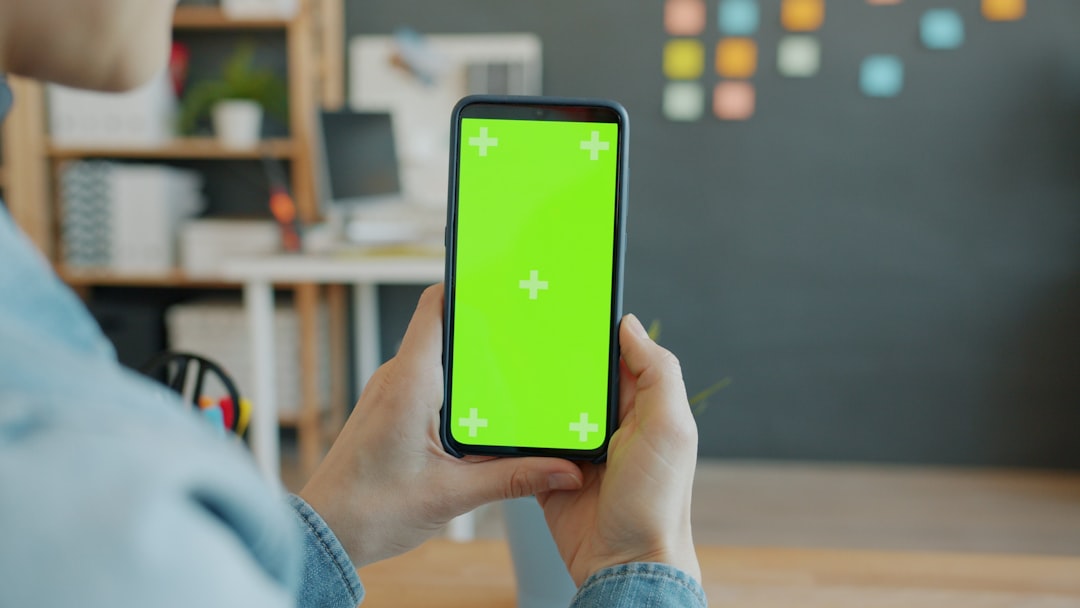
A green screen editor app lets you replace any solid-color background in your video or photo with a different image, video, or effect — using a technique called chroma key.
Finding the right app is harder than it sounds. While professional tools like KineMaster offer robust chroma key features, many other options on the market either crash, hide basic features behind expensive paywalls, or produce shaky, unnatural-looking results. Some apps that boast millions of downloads still carry 2-star ratings because they simply don’t deliver on their promises.
Whether you want to film yourself against a virtual background, create social media content, or produce something that actually looks professional — the app you choose makes a huge difference. You need a tool that offers precision without the frustration of watermarks or limited exports.
I’m Faisal Shahzad, and I’ve spent years testing and reviewing green screen editor app tools for mobile creators, helping beginners cut through the noise and find software that actually works. Let’s break down exactly what to look for — and what to avoid.
Understanding How a green screen editor app Works
At its heart, a green screen editor app relies on a technology called “Chroma Key.” While it sounds like something out of a sci-fi movie, the concept is quite simple. The software identifies a specific color hue—most commonly a bright, neon green—and renders every pixel of that color transparent. This allows whatever is on the layer beneath it to show through.
Why is it usually green?
You might wonder why we don’t use a “purple screen” or a “yellow screen.” Technically, we could! In fact, many apps now support blue and even red screen backgrounds. However, green is the industry standard because it is the furthest color from human skin tones. This ensures that when we hit that “remove” button, we don’t accidentally turn our faces transparent!
The Magic of Compositing
Compositing is the technical term for layering two or more images or videos together to create a single, seamless shot. When we use a green screen editor app, we are essentially building a digital sandwich.
- The Bottom Layer: This is your new background (a beach, a futuristic office, or a weather map).
- The Top Layer: This is your raw footage of a person or object in front of a solid color.

Blue screens were the original choice in the early days of film because blue was easier to remove from physical film stock. However, in the digital age, green screens require less light and produce much less “noise” in the digital sensor, making them the favorite for mobile creators.
Key Features and AI Capabilities
If you want to move beyond “just okay” videos and start creating professional-grade content, you need to look for specific features. A basic green screen editor app might just cut out the color and leave you with jagged, ugly edges. A great app, however, offers much more.
Multi-Layer Editing
This is the most critical feature. To create a convincing effect, you need an app that supports multiple tracks on a timeline. This allows you to stack text, stickers, and music on top of your chroma key footage. For those looking to dive deep, we have More info about green screen maker that explains how these layers interact to create stunning visuals.
AI and Semantic Segmentation
The newest generation of apps is moving away from needing a physical green cloth. Using AI technology like Google Research DeepLab V3+ and TensorFlow Lite, some apps can perform “semantic image segmentation.” This is a fancy way of saying the AI can recognize a human shape and separate it from the background automatically, even if you’re just standing in your living room!
Some apps use local AI processing, which is a huge win for privacy. Instead of sending your video to a cloud server to be processed, the AI works directly on your device. This is not only safer but often faster.
Spill Suppression
Have you ever noticed a weird green “glow” around someone’s hair in a poorly edited video? That’s called “spill.” A high-quality green screen editor app includes spill suppression tools that neutralize that reflected green light, making the subject look like they are actually standing in the new environment.
Color Screen Options
While green is king, sometimes your subject might be wearing green clothes. In that case, you need flexibility.
| Screen Color | Best Use Case |
|---|---|
| Green | Standard choice; requires less light; best for digital sensors. |
| Blue | Best when the subject has blonde hair or is wearing green clothing. |
| Red | Often used for dramatic or stylized shots; less common but useful for specific filters. |
Essential Adjustments in a green screen editor app
Once you’ve enabled the chroma key effect, you’ll likely see a few sliders. Don’t ignore them! These are the keys to a professional look.
- Tolerance/Strength Sliders: This determines how much of the color range the app removes. If you set it too low, you’ll see spots of green. Too high, and your subject starts to disappear.
- Edge Thickness and Feathering: These tools smooth out the border between the subject and the background. Feathering adds a slight blur to the edges, which helps the subject blend into the new scene naturally.
- Opacity and Brightness: Sometimes the background is much brighter than the subject. Adjusting these helps match the lighting of both layers.
For a detailed walkthrough on mastering these settings, check out our guide on Chroma Key in KineMaster.
Step-by-Step: Editing Your First Green Screen Video
Ready to start? Follow these steps to ensure your first project doesn’t “suck.”
1. The Lighting Setup
Before you even open your green screen editor app, you need good lighting. The #1 reason green screen effects fail is uneven lighting.
- No Shadows: Ensure your subject is standing a few feet away from the screen so they don’t cast a shadow on it.
- Even Light: The green background should be a single, flat shade of green. Creases in the fabric or dark corners will confuse the app.
2. Setting Up the Timeline
Open your editor and start a new project. Always import your background first. This becomes your base layer. Next, add your green screen footage as a layer on top of the background. If you’re curious about how to push these limits, Exploring Green Screen Possibilities offers great inspiration for creative layouts.
3. Applying the Effect
Select the green screen layer, find the “Chroma Key” tool, and enable it. Use the eyedropper tool to pick the exact shade of green from your video. Adjust the sliders until the background is completely gone and your subject looks sharp.
Achieving Professional Results with a green screen editor app
To make your video stand out, don’t settle for low-quality exports. Aim for at least 1080p resolution. If your device supports it, 4K export is even better for maintaining clarity after the background has been swapped.
- Frame Rate: Match your export frame rate to your original footage (usually 30fps or 60fps) to avoid stuttering.
- GIF Creation: Some apps allow you to export short green screen clips as GIFs, which is perfect for creating custom stickers for WhatsApp or Telegram.
- Color Correction: After removing the background, use the app’s color tools to adjust the warmth or coolness of your subject so they match the “vibe” of the new background. Learn more about these pro tips in our Professional Video Editing section.
Common Questions and Troubleshooting
What is the difference between green and blue screens?
As we mentioned, there is very little difference in the end result. Blue screens were the original choice for film, but green screens are more popular now because digital cameras are more sensitive to green light, meaning you need less equipment to get a clean key. If your subject has very light hair, a blue screen can sometimes prevent that “halo” effect better than green.
Can I use green screen apps for both photos and videos?
Absolutely! While most people think of video, a green screen editor app is fantastic for photography. You can take a photo in your backyard and instantly transport yourself to the Eiffel Tower. High-end mobile editors even support 12-megapixel photo exports, keeping your images crisp and clear.
Are there free green screen apps without watermarks?
This is the “holy grail” for creators. Most free apps on the App Store or Google Play will slap a large watermark on your final video unless you pay a monthly subscription. However, there are ways around this. For example, using a KineMaster APK (specifically modded versions) can give you access to premium features like no watermarks and 4K exports for free.
Why is my background not disappearing completely?
This is usually due to “noise” or shadows. If the green screen isn’t lit evenly, the app sees multiple shades (dark green, light green, olive). You can try using an app that allows you to select multiple chroma keys (up to 10 in some advanced apps) to target those different shades.
Conclusion
Finding a green screen editor app that doesn’t suck is all about looking past the marketing and checking for features like multi-layer timelines, spill suppression, and high-resolution export options. Whether you are a teacher using a mobile green screen app for a classroom project or a professional influencer looking for 4K precision, the tools are now in the palm of your hand.
At KineMaster App K, we believe that professional-grade editing shouldn’t be locked behind a paywall. By utilizing the KineMaster APK, you can unlock premium features, bypass subscriptions, and export your masterpieces without those annoying watermarks.
Don’t let a bad app hold back your creativity. Grab your green cloth (or just a well-lit wall), download a powerful editor, and start transporting your audience to new worlds today!









 Best Kinemaster MODs8 months ago
Kinemaster for Beginners: Your First Video in 15 Minutes (No Experience Needed)

 Red Kinemaster Download2 years ago
Red Kinemaster Download Apk Latest Version v7.4.11.32428.GP Without Watermark

 Kinemaster Black2 years ago
KineMaster Black Download Latest Version v8.5
- Kinemaster Old Version2 years ago
KineMaster Old Versions 7.4.10.32410.GP Without Mark
- Kinemaster Diamond Mod Apk2 years ago
Kinemaster Diamond Mod Apk Download Pro Version V7.4.0.32260.GP
- Kinemaster without watermark2 years ago
Kinemaster without watermark Download Latest Version 4.15.5.17370.GP
- Best Kinemaster MODs11 months ago
kinemaster pro apk download 2025 full unlocked + no watermark kinemaster mod apk
- Kinemaster Blue Apk2 years ago
Kinemaster Blue Apk Download Without Watermark | Latest Version]