Kinemaster
How to Use Chroma Key in KineMaster for Flawless Edits
Learn to use chroma key Kinemaster for flawless video edits. Get expert tips, troubleshoot issues, and create amazing VFX on mobile.

What Is Chroma Key in KineMaster (and How Do You Use It)?
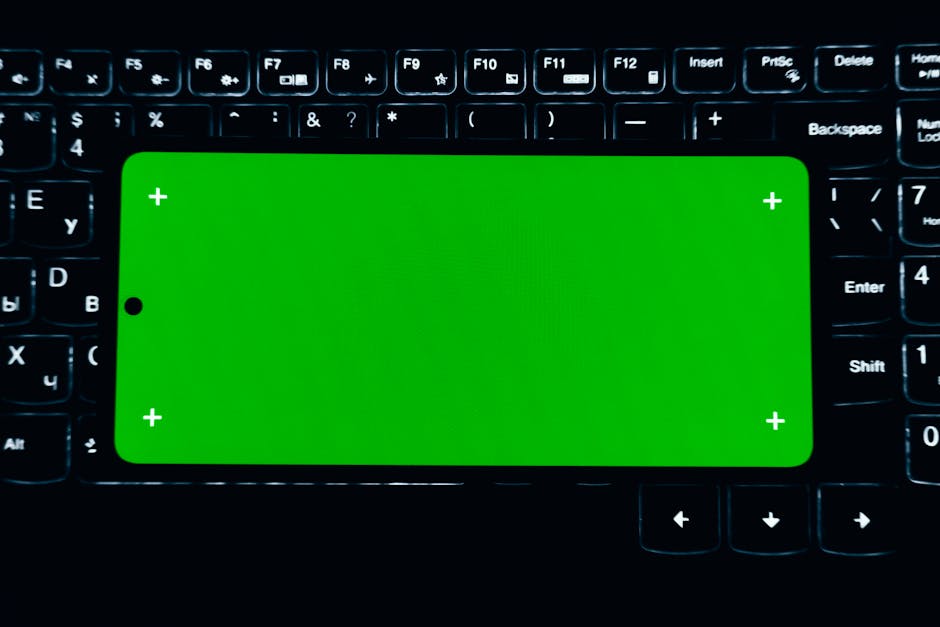
Chroma key KineMaster is a built-in green screen feature that lets you remove a solid-colored background from your video and replace it with any image or video you choose. Here’s how to use it in 5 quick steps:
- Create a new project in KineMaster and import your background image or video as the first layer.
- Add your green screen clip on top as a second layer.
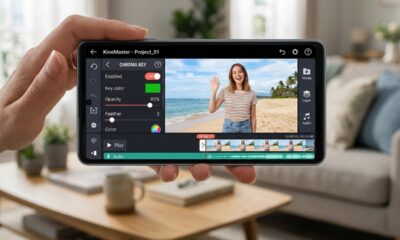
- Tap the green screen layer, then select Chroma Key from the editing menu.
- Use the color picker to select the green color you want to remove.
- Adjust the threshold slider to clean up the edges, then export your video.
That’s the core process. The sections below walk through each step in detail, plus tips to fix common problems.
Replacing a background used to require expensive studio software. Now, KineMaster puts that same technology right on your phone. Whether you’re filming YouTube vlogs, school projects, or short films, the chroma key tool lets you drop yourself into any scene — a New York skyline, a fantasy world, or a clean studio backdrop — without leaving your bedroom.
The feature works by detecting a specific color (almost always bright green) in your footage and making it fully transparent. A second video or image layer sits underneath, showing through wherever that color was. The result looks like you were always there.
It sounds technical, but the actual steps inside KineMaster are surprisingly straightforward — even for beginners.
I’m Faisal Shahzad, and I’ve spent years helping mobile creators get the most out of tools like chroma key KineMaster to produce professional-looking videos without expensive gear or software. In the sections below, I’ll walk you through everything you need — from basic setup to advanced fine-tuning.

Understanding Chroma Key Technology in KineMaster
To master chroma key kinemaster, we first need to understand the “magic” behind it. Chroma keying is a visual effects (VFX) technique used to composite two images or video streams together based on color hues. In the professional world, this is often called “bluescreening” or “greenscreening.”
Why green? Most digital cameras are highly sensitive to green, and it is a color rarely found in human skin tones or natural hair colors. This creates a high contrast that makes it easy for the software to identify what to keep and what to delete. When we enable this feature in KineMaster, the app identifies every pixel of that specific “key color” and makes it 100% transparent.
This technology isn’t just for Hollywood blockbusters anymore. With the Official KineMaster Website offering professional-grade tools on mobile, anyone with a smartphone can achieve high-quality background replacement. Whether you are a gamer wanting to put your face over gameplay or a teacher creating a virtual classroom, the transparency engine in KineMaster is powerful enough to handle complex edges like hair or clothing folds, provided your lighting is right.
Step-by-Step Guide to Using Chroma Key Kinemaster
Getting a clean “key” (the term for a successful background removal) depends entirely on how you set up your project timeline. Unlike basic trimming, chroma keying requires a specific layering order.

1. Start Your Project and Choose the Aspect Ratio
Open KineMaster and tap on “Create New.” You’ll need to select an aspect ratio based on where you plan to share your video:
- 16:9: Best for YouTube and widescreen cinema.
- 9:16: Perfect for TikTok, Instagram Reels, and YouTube Shorts.
- 1:1: Ideal for Instagram feed posts.
2. Import the “New” Background First
This is the most common mistake beginners make. You must import the image or video you want to see in the final result first. This goes into the primary “Media” track. If you want to stand in front of the Eiffel Tower, import the Eiffel Tower photo here.
3. Add Your Green Screen Footage as a Layer
Now, we need to bring in the subject. Tap on Layer > Media and select your green screen video. This will appear as a secondary track below your background. You can resize it or move it around the screen to fit your composition. For a deeper look at what’s possible, check out our guide on exploring kinemaster green screen unlocking creative possiblites.
4. Enable the Chroma Key Tool
With the green screen layer selected in your timeline, a menu will appear on the right side of the screen. Scroll down until you see the Chroma Key option. Tap it and toggle the “Enable” switch to “On.”
Fine-Tuning Your Chroma Key Kinemaster Settings
Once you enable the effect, you might notice that the background isn’t perfectly gone. You might see a “ghostly” outline or some green “spill” around your hair. This is where fine-tuning comes in. We recommend following these chroma key in kinemaster 13 steps to stunning visuals for the most professional look, but here are the essential sliders you need to know:
- Key Color Picker: If your screen isn’t perfectly green (maybe it’s a bit bluish or a darker forest green), tap the color square and use the picker to match the exact shade of your physical background.
- Threshold Sliders (Foreground vs. Background): You will see two percentage sliders. The top slider adjusts the opacity of the subject (the person), while the bottom slider adjusts the transparency of the background color. Move them toward each other until the subject is solid white and the background is solid black in the “Show Mask” view.
- Detail Curve: This is for the pros. It allows you to adjust the brightness and contrast of the edges specifically. It’s great for removing that thin green line that sometimes stays around your shoulders.
- Edge Blur: Use this sparingly to soften the transition between your subject and the new background, making the composite look less “pasted on.”
Creative Benefits of Chroma Key Kinemaster
The beauty of chroma key kinemaster lies in its versatility. It isn’t just for changing a wall color; it’s a gateway to limitless creativity.
- Virtual Sets: Create a professional newsroom or a cozy library vibe without buying furniture.
- Gaming Overlays: Gamers use this to remove the background of their “facecam” so they don’t block the game action.
- Educational Tutorials: Teachers can point to diagrams or “float” next to text as they explain complex topics.
- Cinematic Special Effects: Want to pretend you’re flying or standing on a different planet? This is how it’s done.
- Cloning Yourself: By filming yourself twice on a green screen and layering the clips, you can act alongside yourself in the same scene.
If you are looking to create these assets from scratch, using a green screen maker create stunning effects in seconds can help you generate the perfect overlays for your projects.
Best Practices for Professional Green Screen Results
Even the best software can’t fix a poorly shot video. To get “flawless edits,” you need to pay attention to your physical setup before you even open the app. The goal is to make the green background as flat and “invisible” to the software as possible.
| Feature | Best Practice | Why It Matters |
|---|---|---|
| Lighting | Use even, diffused light on the background. | Shadows or bright spots make the “key color” inconsistent, leading to “dirty” edges. |
| Distance | Stay at least 3-6 feet away from the screen. | Prevents your shadow from falling on the screen and reduces “green spill” on your skin. |
| Fabric | Use wrinkle-free matte material (muslin or painted walls). | Wrinkles create micro-shadows that the chroma key tool struggles to remove. |
| Clothing | Never wear green (or the color of your screen). | If you wear a green shirt, KineMaster will make your torso transparent! |
| Camera Settings | Lock your focus and exposure. | If the camera auto-adjusts, the green color value shifts, ruining the key. |
For those just starting, you can Learn more about KineMaster on Google Play to see how the app handles high-definition footage, which is always recommended for better chroma key results.
Troubleshooting Common Chroma Key Issues
Even experts run into glitches. If your chroma key kinemaster experience isn’t going smoothly, here are the most common fixes.
The “Ghost Face” or Transparent Subject
If your subject looks see-through, your threshold sliders are too aggressive. Go back into the Chroma Key settings and adjust the top slider (the person icon) to the left until the subject is fully opaque.
Green “Halo” Around Hair
This is called “color spill.” It happens when light reflects off the green screen and onto the subject. To fix this in KineMaster, use the Detail Curve to pull back the edge intensity, or apply a slight Color Filter (like a warm or cold tint) to the subject layer to neutralize the green.
Chroma Key Option is Missing
This usually happens for two reasons:
- Wrong Layer: You cannot use Chroma Key on the primary (top) media track. It must be on a Layer.
- Device Compatibility: Older phones may struggle with multiple video layers. Ensure your app is updated. We provide the latest stable versions of KineMaster APK that unlock these features even on devices where the official store might limit them.
Laggy Preview
Chroma keying is CPU-intensive. If your preview is stuttering, try lowering the preview resolution in settings or “Preview Render” the section. Don’t worry—the final export will be smooth.
Frequently Asked Questions about Chroma Key
Why is the Chroma Key option not showing in KineMaster?
As mentioned above, the most common reason is that you’ve placed your green screen footage in the “Main Media” track. KineMaster only allows Chroma Key on Layers. To fix this, delete the clip from the main track, tap Layer > Media, and re-import it. If it still doesn’t show, your device hardware might not support “Video Layers.” You can check this in KineMaster’s “Device Capability Information” settings.
Can I use Chroma Key without a green screen?
Technically, yes. You can use any solid color (blue, red, or even hot pink). However, green is the industry standard because it’s the furthest from human skin tones. If you try to use a white or black wall, the software will likely remove the whites of your eyes or the shadows in your hair, creating a mess. If you don’t have a green screen, KineMaster’s newer “Magic Remover” (AI-powered) can sometimes remove backgrounds without a specific color, though it’s less precise than traditional chroma keying.
What is the difference between free and premium Chroma Key?
In the official free version of KineMaster, the Chroma Key tool is fully functional, but your exported video will have a large watermark in the corner. For professional creators, this is often a deal-breaker. Our KineMaster APK provides access to these premium features without the watermark, allowing for clean, professional 4K exports. Additionally, premium users get access to the “Asset Store,” which includes thousands of high-quality backgrounds and green screen overlays to use in your projects.
Conclusion
Mastering chroma key kinemaster is one of the fastest ways to level up your video production. By understanding the layering process, lighting your set correctly, and using the fine-tuning sliders like threshold and detail curves, you can create “flawless edits” that look like they were made in a high-end studio.
We believe that professional tools should be accessible to everyone. Whether you are a budding YouTuber or a hobbyist filmmaker, KineMaster offers the most intuitive mobile interface for background removal. If you’re tired of watermarks and subscription fees holding back your creativity, you can find the latest tools and versions at https://kinemasterappk.com/.
Now, grab a green sheet, set up your lights, and start building your own virtual worlds. The only limit is your imagination!









 Best Kinemaster MODs2 months ago
Kinemaster for Beginners: Your First Video in 15 Minutes (No Experience Needed)

 Kinemaster Black2 years ago
KineMaster Black Download Latest Version v8.5

 Red Kinemaster Download2 years ago
Red Kinemaster Download Apk Latest Version v7.4.11.32428.GP Without Watermark
- Kinemaster Old Version2 years ago
KineMaster Old Versions 7.4.10.32410.GP Without Mark
- Kinemaster without watermark2 years ago
Kinemaster without watermark Download Latest Version 4.15.5.17370.GP
- Best Kinemaster MODs4 months ago
kinemaster pro apk download 2025 full unlocked + no watermark kinemaster mod apk
- Kinemaster Blue Apk2 years ago
Kinemaster Blue Apk Download Without Watermark | Latest Version]

 Blog2 years ago
Export 4K Video Using Kinemaster: 3 Tips for Amazing Results