Kinemaster Diamond Apk Mirror
How to Download from APKMirror Like a Sideloading Ninja
Learn how to use apkmirror safely and efficiently. Master sideloading, identify device specs, and troubleshoot common issues like a pro.

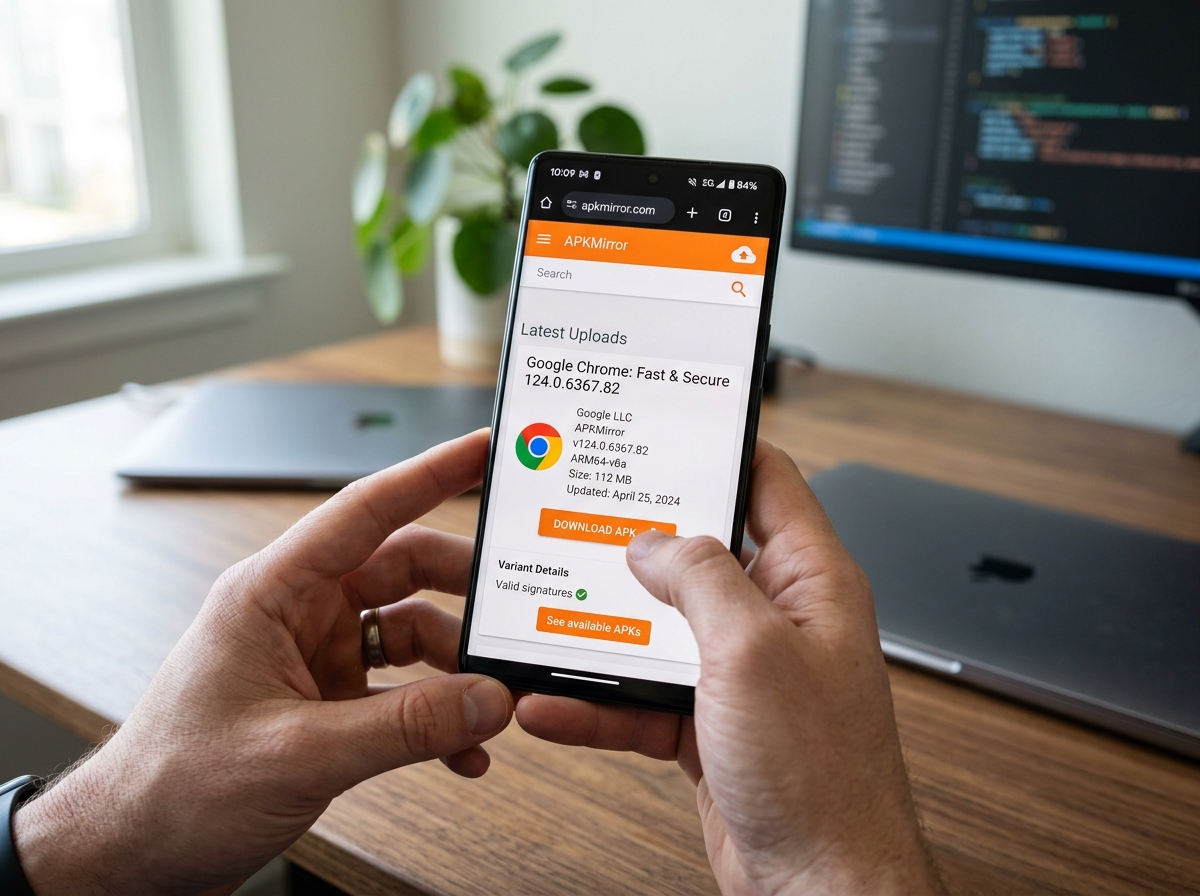
What APKMirror Is and How to Use It (Quick Answer)
How to use APKMirror is something every Android power user should know — and it’s simpler than you think.
Here’s the fast version:
- Go to apkmirror.com in your mobile or desktop browser
- Search for the app you want using the search bar
- Select the correct version and APK variant for your device (e.g., arm64-v8a)
- Tap “Download APK” and confirm the download
- Enable “Install unknown apps” for your browser in Android Settings
- Open the downloaded file from your file manager and tap Install
- For .apkm or split APK files, use the free APKMirror Installer app instead
APKMirror is a free, trusted repository for Android APK files. It was founded in 2014 and is run by the team behind Android Police. Every single APK uploaded to the site is manually reviewed and verified against the original developer’s cryptographic signature before it goes live. That means no tampered files, no hidden malware — just clean, official app packages.
It’s especially useful when you want to:
- Access an app not available in your region
- Roll back to an older version of an app
- Get an update before it rolls out to your device
- Install apps on devices without Google Play (like Amazon Fire tablets)
One common point of confusion for new users — as seen in real user questions online — is the difference between the APKMirror website and the APKMirror Installer app. The website is where you download files. The Installer app is only needed for special bundle formats like .apkm or .xapk. You do not need the Installer app for standard APK downloads.
I’m Faisal Shahzad, and my experience navigating APK repositories and sideloading tools has given me a practical, hands-on understanding of how to use APKMirror safely and efficiently. In this guide, I’ll walk you through everything from finding the right file to getting it installed without errors.
Is APKMirror Safe? The Gold Standard of Sideloading
When we talk about downloading apps from outside the Google Play Store, the first question is always: “Is it safe?” With APKMirror, the answer is a resounding yes. It is widely considered the gold standard for secure sideloading.
The secret sauce lies in cryptographic signatures. Every Android app is signed by its developer with a unique digital key. When a new version of an app is uploaded to APKMirror, the team verifies that its signature matches the original version. If the signatures don’t match, the file is rejected. This ensures that the APK you download is the exact, unmodified binary produced by the developer.
Furthermore, APKMirror has been protected from the Janus vulnerability since day one. This specific Android flaw once allowed attackers to hide malicious code inside an app without altering its signature, but APKMirror’s verification protocols catch these discrepancies.
For extra peace of mind, the site uses APK Signature Scheme v2 and SHA-256 checksums. These technical safeguards mean that if even a single bit of data was changed in the file, the verification would fail. Unlike “sketchy” third-party sites that offer “cracked” apps bundled with malware, APKMirror only hosts legitimate, unmodified files. We always recommend checking the developer info and user ratings on the site to confirm you are getting exactly what you need.
How to Use APKMirror to Identify Your Device Specs
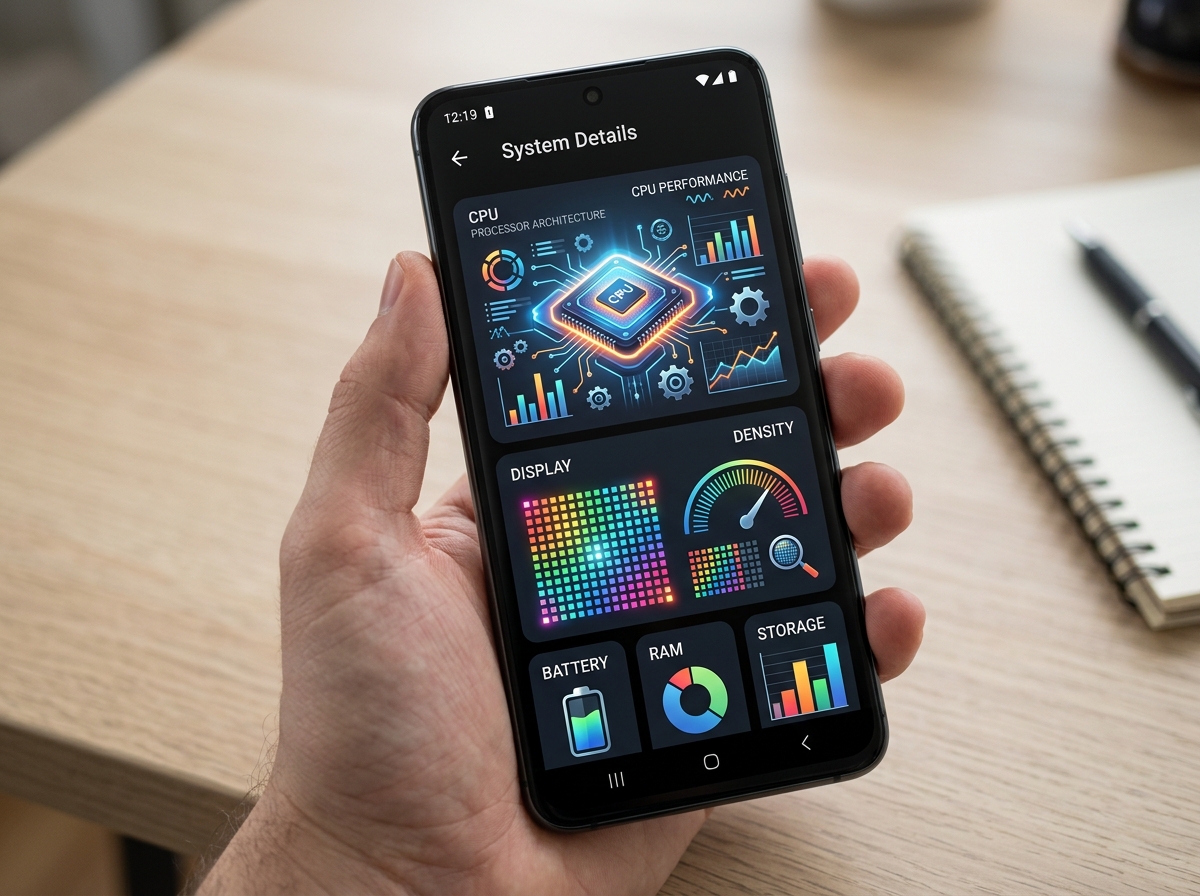
One of the biggest hurdles in learning how to use APKMirror is facing a list of “variants.” You might see options for ARM, ARM64, x86, or different DPI levels. Choosing the wrong one is the #1 cause of the “App not installed” or “Parse error” messages.
Understanding CPU Architecture
Your phone’s processor has a specific language it speaks.
- arm64-v8a: The standard for almost all modern Android phones (64-bit).
- armeabi-v7a: Used by older or budget devices (32-bit). Newer devices like the Pixel 7 have removed 32-bit support, so they only run 64-bit apps.
- x86 / x86_64: Mostly found in Android emulators or rare Intel-based tablets.
Screen Density (DPI)
This refers to how many pixels are packed into your screen.
- nodpi: This is the “Universal” version. It works on any device and is our top recommendation if you aren’t sure what to pick.
- Specific DPI (e.g., 320dpi, 480dpi): These are optimized for specific screen resolutions to save space.
Comparing File Formats
| Format | What it is | How to Install |
|---|---|---|
| APK | Standard single file | Tap to install (Default Android) |
| .apkm | APKMirror’s custom bundle | Requires APKMirror Installer |
| .apks / .xapk | Generic app bundles | Requires APKMirror Installer |
If you are confused about your hardware, we suggest using a tool like “Droid Hardware Info” or checking this guide on finding device specs to match your variant perfectly.
Step-by-Step: Navigating the Download Process
Ready to grab your first file? Let’s walk through the “Ninja” way to navigate the site.
How to Use APKMirror for Standard APK Downloads
Most apps on the site are still available as standard APKs. Here is the workflow:
- Search: Use the magnifying glass at the top of apkmirror.com.
- Pick the Version: You’ll see a list of releases. “Beta” versions are newer but might have bugs. “Stable” is safer for daily use.
- Scroll to “Download”: Click the version you want, then scroll down to the “Download” section. You will see a table of variants.
- Select Variant: Click the version that matches your architecture (usually arm64-v8a) and DPI (usually nodpi).
- The Final Button: On the next page, click the large “Download APK” button.
- Permissions: Your browser (like Chrome) will ask if you want to download the file. Tap “Download anyway.”
- Install: Once finished, tap “Open.” If it’s your first time, Android will prompt you to go to Settings > Special app access > Install unknown apps and toggle the switch for your browser.
How to Use APKMirror Installer for .apkm and Split APKs
In 2018, Google introduced App Bundles. Instead of one big APK, apps are now split into pieces (base + architecture + language). This saves space but makes sideloading harder because you can’t just “tap” a split APK to install it.
To solve this, APKMirror created the .apkm format and the APKMirror Installer app.
- Download the .apkm file from the website.
- Open the APKMirror Installer app (available on the Play Store).
- Browse files within the app and select your downloaded .apkm.
- Select splits: The app will show you the contents. We recommend leaving the defaults selected.
- Install: Tap “Install package.” You may have to watch a short ad if you aren’t a premium subscriber, as the site and app are ad-supported to cover development costs.
Troubleshooting and Device-Specific Workarounds
Even Ninjas run into traps. Here is how to disarm common installation errors:
- “There was a problem parsing the package”: This usually means the download was corrupted or the APK is meant for a newer version of Android than you have. Try redownloading.
- “App not installed”: This often happens if you are trying to install an older version over a newer one. You must uninstall the current app first (but back up your data!). It can also mean you picked the wrong CPU architecture.
- Xiaomi MIUI Issues: Xiaomi’s software often interferes with split APK installations. The fix is to go to Developer Options and disable “MIUI Optimization.” You can then use the APKMirror Installer successfully.
- “Get this app from Play” Error: Some apps now use the Play Integrity API to block sideloading. If you see this, the app has detected it wasn’t installed via the official store. Currently, there are limited workarounds for this without root access.
- Amazon Fire Tablets: Since these don’t have the Play Store, using the Silk browser to download APKs is common. If the “Install” button is grayed out, try turning the screen off and back on, or ensure no “blue light filter” apps are running.
Frequently Asked Questions about APKMirror
Can I update sideloaded apps via the Play Store?
Yes! This is one of the best features. As long as the sideloaded APK has the same cryptographic signature as the version on the Play Store (which it will if it’s from APKMirror), the Play Store will recognize it and offer updates normally.
Does APKMirror host paid or pirated apps?
No. APKMirror has a strict no-piracy policy. They do not host “cracked” versions of paid apps. They only host free apps or developer-provided betas. In rare cases, they host updates for paid apps (like MX Player Pro), but you still need a valid license to use them.
Why does APKMirror have so many ads?
Hosting 28,000+ pages of APKs and manually reviewing every file is expensive! The ads keep the service free for everyone. If you hate ads, they offer a Premium subscription for $10/quarter that removes ads and adds a dark theme.
Conclusion
Mastering how to use APKMirror opens up a world of freedom for your Android device. Whether you’re bypassing regional restrictions or trying out the latest features before your friends, it’s the safest way to take control of your software.
If you are a video creator looking for that same level of freedom, we recommend checking out the kinemaster-diamond-apk-mirror version. Just like a perfectly picked APK from the mirror, our KineMaster APK offers a premium experience without the hurdles. You can enjoy watermark-free editing, 4K exports, and all the professional templates you need to make your content shine.
Ready to start your journey? Download KineMaster Pro today and put your new sideloading skills to work! Happy installing!











 Best Kinemaster MODs9 months ago
Kinemaster for Beginners: Your First Video in 15 Minutes (No Experience Needed)

 Kinemaster Black2 years ago
KineMaster Black Download Latest Version v8.5

 Red Kinemaster Download2 years ago
Red Kinemaster Download Apk Latest Version v7.4.11.32428.GP Without Watermark
- Kinemaster Old Version2 years ago
KineMaster Old Versions 7.4.10.32410.GP Without Mark
- Kinemaster Diamond Mod Apk2 years ago
Kinemaster Diamond Mod Apk Download Pro Version V7.4.0.32260.GP
- Kinemaster without watermark2 years ago
Kinemaster without watermark Download Latest Version 4.15.5.17370.GP
- Best Kinemaster MODs11 months ago
kinemaster pro apk download 2025 full unlocked + no watermark kinemaster mod apk
- Kinemaster Blue Apk2 years ago
Kinemaster Blue Apk Download Without Watermark | Latest Version]