Kinemaster Pro Mod Apk
One Simple Way to KineMaster 1080p Export Free
Learn kinemaster 1080p export free: Step-by-step guide to watermark-free Full HD exports, pro settings & troubleshooting tips.

Why KineMaster 1080p Export Free Is Easier Than You Think
KineMaster 1080p export free is fully possible — and here’s the quick answer for those who need it fast:
How to export 1080p video free in KineMaster:
- Open your project in KineMaster
- Tap the Share/Export button (arrow icon)
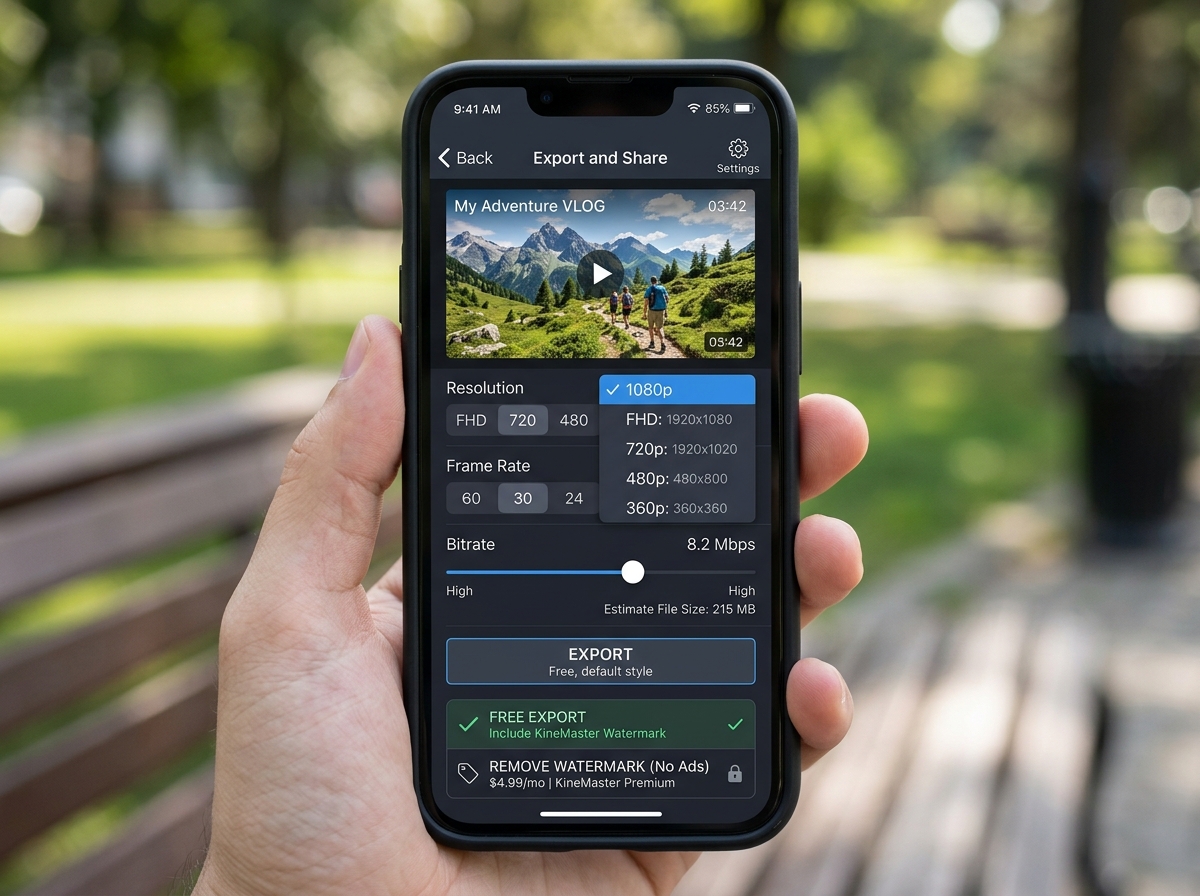
- Set resolution to 1080p (1920×1080)
- Set bitrate to 10-16 Mbps
- Choose 30 FPS (or 60 FPS for action footage)
- Select MP4 (H.264) format
- Tap Export
Note: The free version of KineMaster supports 1080p export but adds a watermark. To export without a watermark, a premium subscription or a verified watermark-free APK is required.
For beginner mobile editors, the export screen can feel confusing. Three small options — resolution, frame rate, and bitrate — make a huge difference in your final video quality. Get them wrong and your video looks blurry or choppy. Get them right and your content looks clean, sharp, and professional.
KineMaster is one of the most popular mobile video editors available, rated 4.7 out of 5 from 38,000+ ratings on the Apple App Store. It supports Full HD and even 4K exports on compatible devices, making it a serious tool for creators who edit entirely on their phone.
The catch? Many users don’t know which settings to use — or how to get rid of that watermark without paying for a subscription.
I’m Faisal Shahzad, and at kinemasterappk.com I help mobile creators get the most out of KineMaster, including achieving a clean KineMaster 1080p export free of quality issues and unwanted watermarks. Read on for the full step-by-step breakdown.

Essential Requirements for KineMaster 1080p Export Free
Before we dive into the buttons you need to press, we have to talk about your “engine.” Exporting a video in Full HD (1080p) isn’t just about clicking a setting; it’s a heavy lifting task for your smartphone. If your device doesn’t meet the baseline requirements, the app might crash, or the kinemaster 1080p export free option might not even appear in your menu.

To ensure a smooth experience, your device should ideally meet these specifications:
- Operating System: Android 6.0 or higher (iOS 17.6+ for Apple users).
- RAM: At least 2GB is required, but 4GB is highly recommended for 1080p. If you want to move up to 4K, 4GB is the absolute minimum.
- Processor: A quad-core or octa-core chipset is necessary to handle the simultaneous rendering of multiple video layers.
- Storage: You need at least 20% free space on your internal storage. A 10-minute 1080p video can easily take up 1GB or more depending on your bitrate.
Device Compatibility Analysis
One of the coolest things about KineMaster is that it actually tests your phone’s muscles. If you don’t see the 1080p option, it’s likely because the app has “throttled” your settings to protect your phone from overheating.
We recommend going to the Settings (gear icon) on the main screen, selecting Device Performance Information, and tapping Run Analysis Now. This forces the app to re-evaluate your hardware encoding capabilities. Sometimes, after an OS update, your phone can suddenly handle higher resolutions it couldn’t before. For more advanced tips on pushing these boundaries, check out our guide on how to Export 4K Video Using KineMaster: 3 Tips for Amazing Results.
Storage and Memory Management
If your export hangs at 50% or 99%, the culprit is almost always a lack of “breathing room.” When KineMaster exports, it creates temporary files. If your storage is packed to the brim with old memes and blurry photos, the export will fail.
Before you start your kinemaster 1080p export free process:
- Clear the Cache: Go to your phone’s App Settings > KineMaster > Storage > Clear Cache. This won’t delete your projects, but it will clear out digital “junk.”
- Close Background Apps: If you have 20 Chrome tabs and a heavy game open in the background, your RAM is being hogged. Close everything else.
- Restart your device: It sounds old-school, but a fresh reboot clears out system-level glitches that might interfere with the rendering process.
Step-by-Step Guide to KineMaster 1080p Export Free
Now for the fun part! You’ve edited your masterpiece, added the transitions, and synced the music. It’s time to bring that video into the real world.
When you hit that export button (usually an arrow pointing up or a “Share” icon), you are presented with a screen that looks like a cockpit. Here is the exact path to a perfect kinemaster 1080p export free:
- Resolution: Slide the left-hand wheel until you see FHD 1080p.
- Frame Rate: For most videos, 30 FPS is the standard. It provides a natural look that works perfectly for YouTube and Instagram.
- Format: KineMaster defaults to MP4 using the H.264 codec. This is the gold standard for compatibility. It will play on any TV, phone, or computer on the planet.
If you are tired of the “Made with KineMaster” tag sitting in the corner of your hard work, you might want to look into a KineMaster Without Watermark APK which allows you to access these high-end export features without the visual clutter.
Selecting the Right Resolution
Why 1080p? In video, 1080p (1920×1080 pixels) is the “sweet spot.” While 720p can look a bit soft on modern high-res smartphone screens, and 4K creates massive files that are hard to upload, 1080p offers professional-grade pixel density without making your phone explode.
When you choose kinemaster 1080p export free, you are ensuring that your viewers see sharp text and clear faces. If you’re looking for a version of the app that lets you hit that 1080p mark without the annoying logo, you can find a No Watermark KineMaster Download right here on our site.
Optimizing Bitrate for KineMaster 1080p Export Free
This is where most beginners get lost. Bitrate is essentially the “amount of data” per second of video.
- Too Low: Your video looks blocky and “pixelated,” especially during fast movement.
- Too High: Your file size becomes enormous, and your phone might struggle to play it back.
For a kinemaster 1080p export free of quality loss, we recommend a bitrate between 10 Mbps and 16 Mbps. If your video is a simple “talking head” vlog, 10 Mbps is plenty. If it’s a gaming montage or a travel video with lots of detail, push it toward 16 Mbps. For a deeper dive into these numbers, see our Top 3 Best Export Settings for KineMaster: A Master Guide.
Advanced Settings for Professional Quality Output
If you want your videos to stand out from the millions of “basic” edits uploaded every day, you need to peek under the hood of the advanced settings.
Enabling 60fps for KineMaster 1080p Export Free
By default, KineMaster often caps your export at 30 FPS. But what if you’re a gamer or an action sports enthusiast? You need that buttery-smooth 60 FPS.
To unlock this:
- Go to Settings > Advanced and Experimental Settings.
- Toggle on Allow export frame rate up to 60 FPS.
- You might see a warning saying this could cause issues — click “Continue Anyway.”
Once enabled, you’ll see the 60 FPS option on your export screen. This is a game-changer for kinemaster 1080p export free projects involving high-speed motion. To get these features fully unlocked along with premium assets, you can download the KineMaster Pro APK Download 2025 Full Unlocked No Watermark KineMaster Mod APK.
Audio Bitrate and Format
Don’t let bad audio ruin a great 1080p picture. When exporting, ensure your audio is set to AAC format. A bitrate of 128 kbps is the standard for clear sound, but if you are a musician or a podcaster, try to aim for 192 kbps or even 320 kbps if your device allows it.
People will forgive a slightly blurry video, but they will turn off a video with “crunchy” or distorted audio. If you’re struggling with watermarks while trying to maintain this high audio/video quality, check out how to Remove KineMaster Watermark in 2 Easy Ways.
Troubleshooting Common Export Failures
We’ve all been there: the export progress bar gets to 98% and then… “Export Failed.” It’s heartbreaking.
Fixing “Export Failed” Errors
If your kinemaster 1080p export free keeps failing, try these fixes in order:
- Lower the Bitrate: Sometimes your phone’s hardware simply can’t keep up with a high bitrate. Slide it down a few notches and try again.
- Check for “Glitchy” Clips: Sometimes a specific video clip you imported is corrupted. Try to find the spot where the export stops and check that specific clip on your timeline.
- Update the App: Older versions of KineMaster might have bugs that were fixed in the latest patch.
For a complete walkthrough on fixing these headaches, read The Ultimate Guide to Removing KineMaster Watermarks for Free, which also covers common software glitches.
Resolving Lag and Preview Issues
If your timeline is lagging while you edit, your export is more likely to fail. To fix this, use Proxy Layers. This creates a low-resolution version of your video for you to edit with, but when you perform your final kinemaster 1080p export free, it uses the original high-quality files.
Also, keep your timeline clean. If you have 10 layers of stickers and effects stacked on top of each other, your phone’s processor will struggle.
Frequently Asked Questions about KineMaster Exports
Does the free version of KineMaster support 1080p?
Yes, absolutely! The official free version allows you to export in 1080p and even 4K (if your phone supports it). The only limitation is the watermark and the lack of access to certain premium assets in the Store.
How do I remove the watermark from a 1080p export for free?
To remove the watermark for free, you would typically need to use a modded version of the app, such as the ones we provide. These versions unlock the “No Watermark” feature that is usually hidden behind a monthly subscription.
Why is my 1080p video blurry after exporting from KineMaster?
This usually happens for two reasons:
- Low Bitrate: If your bitrate slider was set too low (below 5 Mbps), the video will look muddy.
- Upscaling: If your original footage was only 720p and you tried to export it at 1080p, the app has to “stretch” the pixels, which results in a blurry look. Always match your export resolution to your source footage.
Conclusion
Achieving a high-quality kinemaster 1080p export free of charge is a skill that every mobile creator should master. By understanding the relationship between resolution, frame rate, and bitrate, you can turn your smartphone into a professional editing suite.
Whether you are making YouTube tutorials, TikToks, or family vlogs, KineMaster provides the tools you need to look professional. And if you want to take it to the next level by removing watermarks and unlocking 4K features without the heavy subscription price, we are here to help.
Ready to start creating without limits? Download KineMaster for Free and start your journey toward becoming a pro mobile editor today!







 Best Kinemaster MODs9 months ago
Kinemaster for Beginners: Your First Video in 15 Minutes (No Experience Needed)

 Kinemaster Black2 years ago
KineMaster Black Download Latest Version v8.5

 Red Kinemaster Download2 years ago
Red Kinemaster Download Apk Latest Version v7.4.11.32428.GP Without Watermark
- Kinemaster Old Version2 years ago
KineMaster Old Versions 7.4.10.32410.GP Without Mark
- Kinemaster Diamond Mod Apk2 years ago
Kinemaster Diamond Mod Apk Download Pro Version V7.4.0.32260.GP
- Kinemaster without watermark2 years ago
Kinemaster without watermark Download Latest Version 4.15.5.17370.GP
- Best Kinemaster MODs11 months ago
kinemaster pro apk download 2025 full unlocked + no watermark kinemaster mod apk
- Kinemaster Blue Apk2 years ago
Kinemaster Blue Apk Download Without Watermark | Latest Version]