Kinemaster Mod Apk
How to Export Video the Right Way
Learn how to export video with optimal quality, bitrate, and platform settings for YouTube, social media, and mobile apps.


What You Need to Know About How to Export Video
Knowing how to export video the right way is the difference between a polished final file and a blurry, glitchy mess that nobody wants to watch.
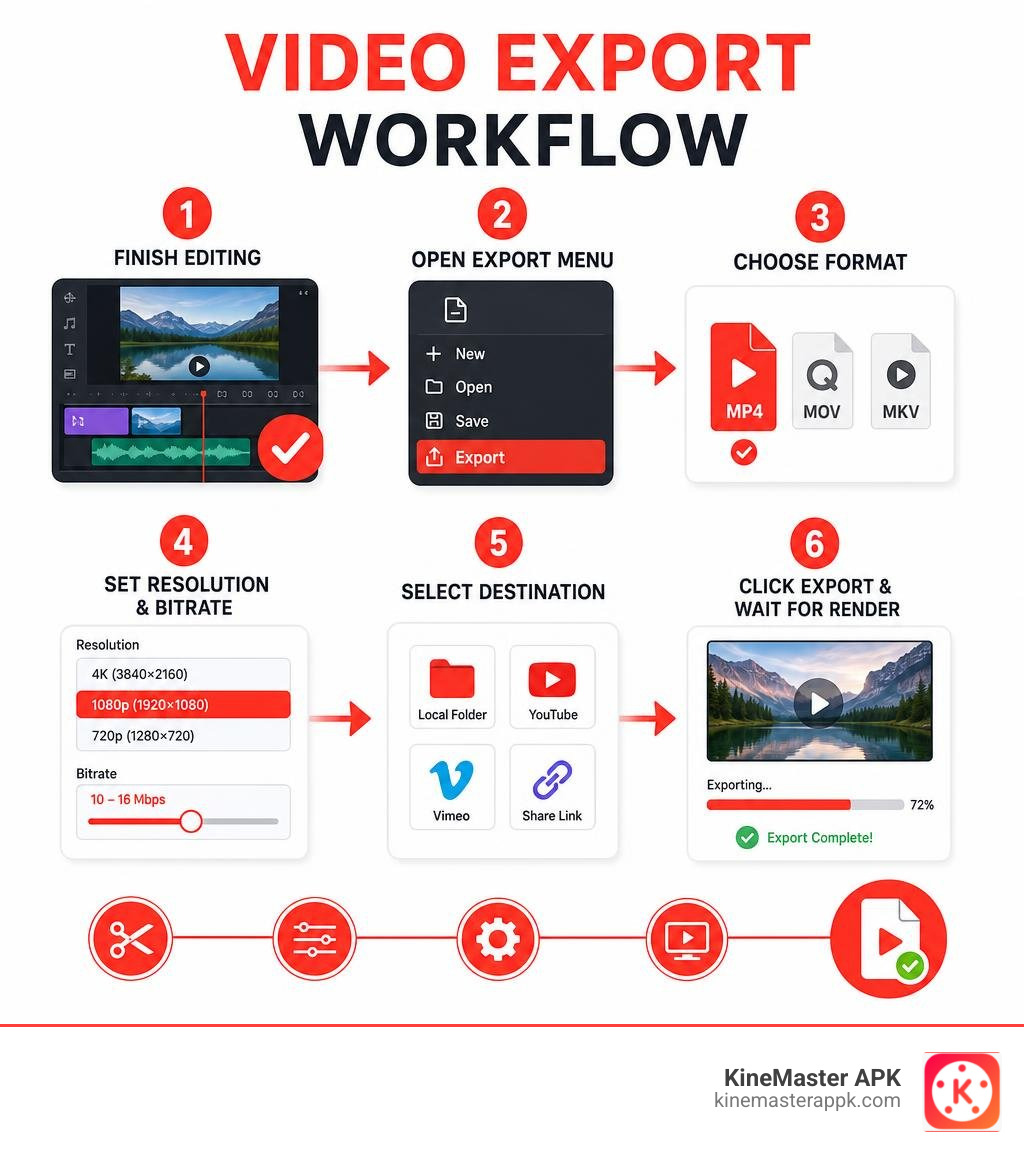
Here is a quick answer if you just need the core steps:
- Finish editing your video project completely before starting the export process.
- Open the export menu — usually found under File > Export, a Share icon, or an Export tab.
- Choose your format — MP4 (H.264) works for almost every platform and device.
- Set your resolution and bitrate — 1080p at 10–16 Mbps covers most YouTube and social media needs; 4K needs 30–60 Mbps or more.
- Select your destination — local folder, YouTube, Vimeo, or a direct share link.
- Click Export and wait for the render to finish before closing the app.
Getting these steps wrong is more common than you think. The wrong codec, a missed audio setting, or a mismatched aspect ratio can ruin an otherwise great edit. And on mobile apps, on-device rendering means a long video can take serious time — so your settings matter even more.
This guide walks through every major platform, setting, and common mistake so you can export with confidence every time.
I’m Faisal Shahzad, and I’ve spent years helping mobile video editors understand how to export video cleanly — especially on apps like KineMaster where export settings can make or break your final result. Let’s break it all down step by step.
Core Settings: How to Export Video with Optimal Quality
When you click that export button, your editing software has to make millions of calculations to flatten your timeline of clips, music, effects, and text into a single playable file. To get the best results, you need to understand the structural pillars of digital video.
Just as U.S. companies export well over 2 trillion dollars of goods and services each year with strict shipping standards, you must prepare your video files with precision before they “export” to the digital world.
To achieve professional quality, we must balance four core settings: resolution, aspect ratio, bitrate, and video codecs. If you are aiming for the ultimate level of clarity, you can learn more about configuring these settings in our guide on how to Export 4K Video Using KineMaster 3 Tips for Amazing Results.
To help you visualize how these settings interact, we have compiled a reference table representing standard export profiles as of July 2026:
| Resolution Profile | Aspect Ratio | Recommended Bitrate Range | Typical File Size (Per Minute) | Primary Use Case |
|---|---|---|---|---|
| 4K Ultra HD (2160p) | 16:9 | 35 – 60 Mbps | 250 – 450 MB | Cinematic content, YouTube 4K |
| Full HD (1080p) | 16:9 or 9:16 | 10 – 20 Mbps | 75 – 150 MB | Standard YouTube, social media |
| HD (720p) | 16:9 or 9:16 | 5 – 10 Mbps | 35 – 70 MB | Fast social sharing, LMS platforms |
| SD (480p) | 4:3 or 16:9 | 2 – 5 Mbps | 15 – 30 MB | Legacy systems, low-bandwidth web |
Understanding Resolution and Aspect Ratio
Resolution refers to the actual pixel dimensions of your video frame. A standard Full HD video consists of 1920 pixels horizontally by 1080 pixels vertically (1080p). Aspect ratio, on the other hand, describes the proportional relationship between the width and height of the screen.
When configuring your export, it is vital to match your export aspect ratio to your editing timeline’s aspect ratio. If you edit a horizontal 16:9 project and export it as a vertical 9:16 video, your software will either crop out crucial action on the sides or add massive black bars to frame-fit the video.
For creators on a budget who want to maximize their visual clarity without spending a fortune, check out our walkthrough on One Simple Way to KineMaster 1080p Export Free to output beautiful Full HD projects seamlessly.
Demystifying Bitrate and Video Codecs
The word “codec” stands for compression-decompression. It is the mathematical algorithm used to shrink your massive raw video sequence into a manageable file size. The H.264 codec is the absolute gold standard for web delivery, used in roughly 80% to 90% of all online video files because it balances compression efficiency with universal device compatibility.
Bitrate is the amount of data processed per second of video playback, usually measured in megabits per second (Mbps). Think of bitrate as the pipe through which your video data flows:
- Low Bitrate: Creates a tiny file size, but forces heavy compression, resulting in blocky, pixelated, or blurry footage.
- High Bitrate: Retains pristine image details, but produces massive files that take hours to upload and render.
For the cleanest output, we recommend using Variable Bitrate (VBR), 2-Pass encoding when available. In the first pass, the encoder analyzes your entire timeline to identify fast-motion scenes (which need more data) and static scenes (which need less). In the second pass, it distributes the data dynamically. This approach optimizes video quality while preventing your final file size from ballooning out of control.
Step-by-Step Workflows Across Different Platforms
The mechanical process of how to export video varies depending on whether you are working on a high-powered desktop workstation, a web browser, or a mobile device.

How to export video on desktop and web editors
Desktop video editors offer deep, granular control over your render pipeline, but they require a structured approach to prevent system crashes or corrupted files.
Professional Desktop Editors (Premiere Pro, DaVinci Resolve, OpenShot)
- Define Your Range: Before launching the export window, set your In and Out points on your timeline to ensure you only render the desired portion.
- Open the Export Window: Navigate to your software’s export interface. In Premiere, you can use the shortcut
Ctrl + M(Windows) orCmd + M(Mac), or navigate to the Export tab. In DaVinci Resolve, you will head over to the Deliver page (Shift + 8). - Configure the Settings: Select your format (such as H.264 or QuickTime) and choose a matching preset like “Match Source – Adaptive High Bitrate.”
- Set the Destination: Give your file a clear, recognizable name and choose a dedicated output directory on a drive with plenty of free storage space.
- Render: Click “Export” to render directly, or send the project to an external queue manager to free up your system resources.
For detailed official guides on these desktop tools, you can review the official documentation on how to Export video and audio files in Premiere | Premiere , explore the Export — OpenShot Video Editor 3.5.1 documentation , or read this comprehensive breakdown on How to Export Video in DaVinci Resolve + Best Settings .
Specialized Desktop & Web Tools
For developers, data analysts, or educators using specialized visualization platforms, the export process is highly structured. For instance, in robotics and telemetry visualization apps, you can follow the steps outlined in the Video export | Foxglove Docs to record and export panel layouts directly to MP4 or WebM formats.
That web-based video editors often process rendering on cloud servers, meaning your export speeds will depend entirely on your internet upload and download bandwidth rather than your local GPU.
How to export video on mobile apps
Mobile video editing has exploded in popularity, but mobile hardware operates under strict thermal and battery constraints. On-device rendering takes place directly on your phone’s system-on-a-chip (SoC), meaning you must optimize your settings to avoid overheating or app crashes.
When editing on your phone or tablet, the export pipeline is straightforward:
- Tap the Share or Export icon (usually an arrow pointing out of a box) in the top-right corner of the interface.
- Select your desired resolution (such as 1080p or 4K) and frame rate (typically 30 FPS or 60 FPS).
- Adjust the bitrate slider. A moderate setting is usually best to avoid running out of local device storage.
- Tap Save as Video or Export and keep the app open in the foreground until the progress bar reaches 100%.
For a deep dive into configuring these settings on your mobile device, read our Top 3 Best Export Settings for KineMaster A Master Guide.
Platform-Specific Optimization and Advanced Techniques
Exporting is not a one-size-fits-all process. A file optimized for a local media player might look terrible when compressed by social media algorithms.

Exporting for YouTube, Vimeo, and Social Media
Major video hosting platforms re-encode every single video file uploaded to their servers to generate multiple playback resolutions. If your upload bitrate is too low, the platform’s secondary compression will make your video look blocky and desaturated.
- YouTube: Favors high-bitrate uploads. For 1080p at 30 FPS, aim for a practical bitrate of 12–15 Mbps. For 4K uploads, aim for 35–45 Mbps using the BT.709 color space to prevent color shifts. If you are using mobile tools, you can follow our guide on the 5 Easy Steps to Upload Video to YouTube with KineMaster.
- Vimeo: Known for high-quality playback. Vimeo officially recommends target bitrates of 10–20 Mbps for standard 1080p exports and 30–60 Mbps for 4K files, paired with high-quality AAC audio at 320 kbps and a sample rate of 48,000 Hz.
- TikTok & Instagram Reels: These platforms are strictly vertical (9:16). Export your files at 1080×1920 resolution with a bitrate of 12,000 to 15,000 Kbps. Uploading 4K files directly to these platforms is often counterproductive, as their aggressive compression engines can cause stuttering playback.
Interactive Features, Captions, and LMS Exports
If you are exporting educational tutorials or corporate training modules, you may need to export more than just raw video and audio.
- Closed Captions: You can burn captions directly into the video pixels (hardcoded) or export them as a separate
.srtor.vttsidecar file, allowing viewers to toggle them on and off. - Interactive Elements: Screen recording and eLearning suites (like Camtasia) allow you to export videos with interactive quizzes, hotspots, and tables of contents. These require exporting your project using a specialized “Smart Player” wrapper (HTML5 files) or packaging the project as a SCORM package for integration into a Learning Management System (LMS).
Direct Export vs. External Media Encoders
Professional editors often have to choose between rendering directly inside their editing software or sending the project to an external encoder (like Adobe Media Encoder).
- Direct Export: Best for quick, single-sequence renders. However, it completely locks up your editing software, preventing you from working during the render.
- External Media Encoder: Sends the project to a background queue. This allows you to continue editing other projects, perform batch processing (rendering multiple formats or resolutions of the same project simultaneously), and utilize dedicated hardware acceleration without interrupting your creative flow.
Frequently Asked Questions about Video Exporting
Why does my exported video have no audio or look blurry?
If your video has no sound, check your export settings to ensure the “Export Audio” checkbox is ticked. Additionally, verify that your audio codec is set to AAC or Linear PCM, and that your master audio tracks are routed correctly in your timeline.
If your video looks blurry, you likely exported at a resolution lower than your source footage, or your bitrate slider was set too low. Always ensure your export resolution matches your timeline sequence, and keep your bitrate within the recommended ranges outlined in our core settings table.
What is the difference between MP4 and MOV formats?
- MP4 (MPEG-4 Part 14): A highly compressed, highly compatible container format. It uses the H.264 or H.265 codec, resulting in small file sizes with excellent quality. It plays natively on almost every device, browser, and operating system.
- MOV: Developed by Apple, this format is typically used for high-quality, low-compression video editing workflows (using codecs like ProRes). While it offers pristine quality, the files are massive, making them less practical for direct web uploads or mobile storage.
How can I export high-quality videos without a watermark?
Many free video editing applications restrict high-quality exports (like 1080p or 4K) or force a large brand watermark onto your final video unless you purchase an expensive monthly subscription.
If you are a mobile creator looking to bypass these restrictions, we provide clean, secure downloads of the KineMaster APK on our platform. This gives you free access to premium features like unrestricted 4K exports, advanced templates, and complete watermark removal, allowing you to produce professional-grade videos directly from your mobile device.
Conclusion
Exporting is the final, crucial bridge between your creative vision and your audience. By mastering your resolution, matching your aspect ratios, and selecting the correct bitrates, you ensure your videos look exactly as intended on every screen.
Before you hit that final render button, run through this quick checklist:
- Is your rendering range set correctly (In/Out points)?
- Does your export aspect ratio match your sequence settings?
- Have you selected H.264 MP4 for maximum compatibility?
- Is your bitrate high enough for your target platform?
- Do you have enough free storage space on your drive?
If you are ready to take your mobile video production to the next level without watermarks or subscription barriers, head over to KineMaster APK to download the app and start exporting stunning, high-resolution videos today!


 Best Kinemaster MODs8 months ago
Kinemaster for Beginners: Your First Video in 15 Minutes (No Experience Needed)

 Kinemaster Black2 years ago
KineMaster Black Download Latest Version v8.5

 Red Kinemaster Download2 years ago
Red Kinemaster Download Apk Latest Version v7.4.11.32428.GP Without Watermark
- Kinemaster Old Version2 years ago
KineMaster Old Versions 7.4.10.32410.GP Without Mark
- Kinemaster Diamond Mod Apk2 years ago
Kinemaster Diamond Mod Apk Download Pro Version V7.4.0.32260.GP
- Kinemaster without watermark2 years ago
Kinemaster without watermark Download Latest Version 4.15.5.17370.GP
- Best Kinemaster MODs11 months ago
kinemaster pro apk download 2025 full unlocked + no watermark kinemaster mod apk
- Kinemaster Blue Apk2 years ago
Kinemaster Blue Apk Download Without Watermark | Latest Version]