Best Kinemaster MODs
Kinemaster for Beginners: Your First Video in 15 Minutes (No Experience Needed)

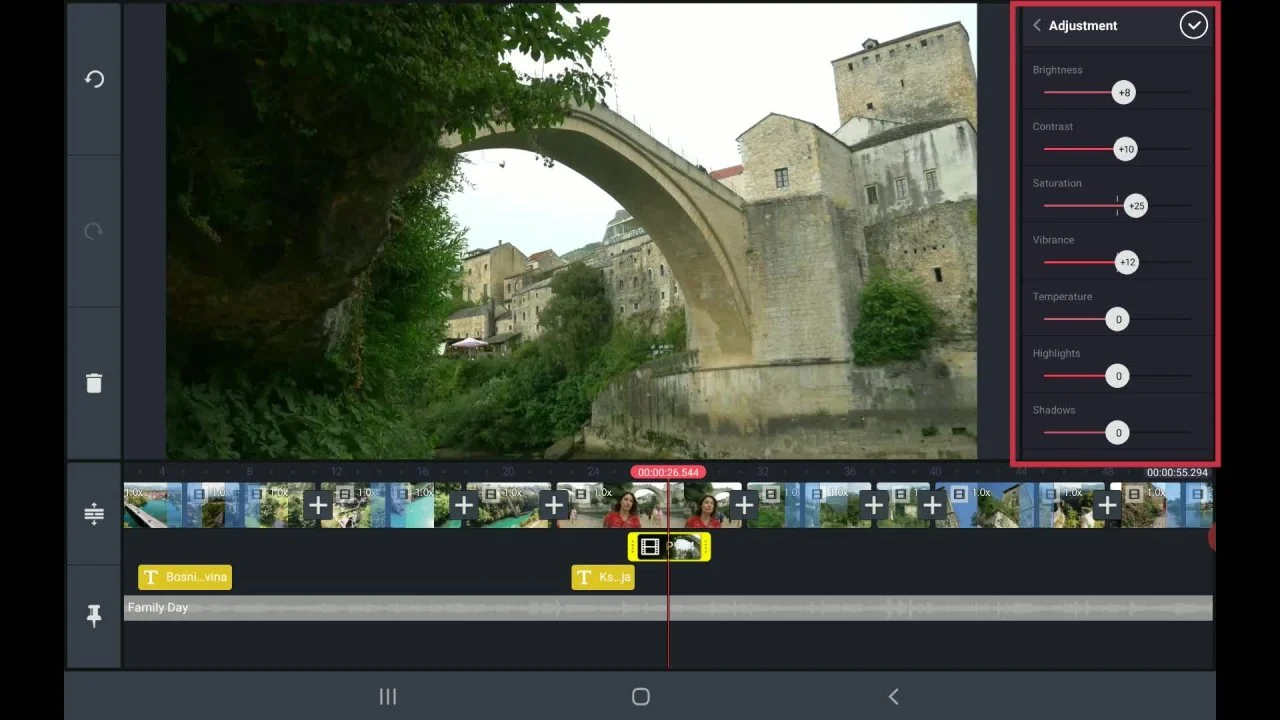
Hey there! So you’ve downloaded Kinemaster and opened it for the first time. Maybe you’re staring at all those buttons and layers feeling a bit overwhelmed. I get it – every pro editor started exactly where you are right now.
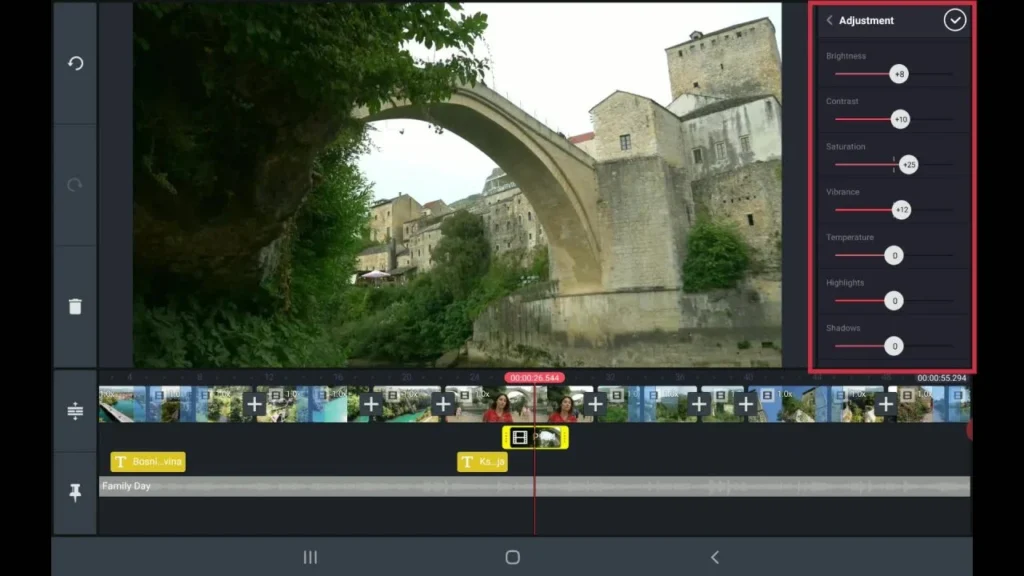
Here’s the good news: you don’t need to learn everything today. In just 15 minutes, I’m going to walk you through creating your first complete video. Not a boring tutorial, but an actual video you can share. Ready? Let’s dive in.
Minute 1-2: First Things First – The Setup
When you open Kinemaster, you’ll see a purple screen with a big “+” button. That’s your start line. Tap it.
You’ve got two choices:
- Start with a blank project (Choose your aspect ratio – for Instagram/TikTok pick 9:16, for YouTube pick 16:9)
- Use a template (Let’s save these for later – today, you’re the creator!)
Pick 16:9 (landscape) for your first project. Name it “My First Video” and tap the checkmark.
Minute 3-5: Adding Your First Clip – It’s Like Placing a Photo
See that empty timeline at the bottom? That’s where the magic happens. Tap the Media button (looks like a film strip).
Your phone’s gallery will open. Pick ANY video clip or photo you have. Seriously – your dog, your lunch, a sunset, anything. Select it and tap the checkmark.
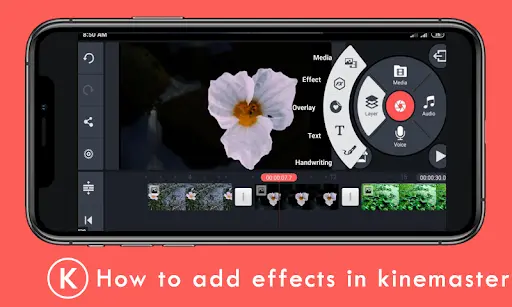
Boom! Your clip now lives on the timeline. You can pinch to zoom in/out on it in the preview screen above. To trim it, just tap the clip on the timeline and drag the edges.
Minute 6-8: Making It Talk – Adding Text
Here’s where your video gets personality. Tap the Layer button → Text.
Type something simple: “My First Edit!” or “Hello World!”
Now play with it:
- Drag it around on the preview screen
- Change the font (tap the paintbrush icon)
- Make it bigger with two fingers
- Want it to appear later? Drag the text layer on the timeline so it starts halfway through your clip
Pro tip: Less is more. One clean font beats three fancy ones.
Minute 9-11: Setting the Mood – Music Matters
Silent movies are so 1920s. Tap the Audio button (music note icon).
You have options:
- My Files: Music from your phone
- Recorder: Record your voiceover right now
- Stock Music: Kinemaster’s free library (Gold section needs premium)
Pick a stock music track – try “Upbeat” or “Inspirational.” Add it. Notice the audio appears as a green layer on your timeline.
Critical step: Tap the audio clip, then tap Volume. Slide it down to about 30%. You want background music, not an eardrum assault.
Minute 12-13: The Magic Touch – Transitions & Effects
Feeling fancy? Let’s add one professional touch.
An Effect: Tap the Layer button → Effects. Browse and add one that catches your eye. “Glitch” or “Light Leak” are fun starters. Drag it short – effects are like cologne, a little goes a long way.
A Transition: Tap between your clips on the timeline (if you have more than one). Pick “Fade” – simple and classy.
Minute 14-15: The Grand Finale – Exporting Your Masterpiece
See that arrow pointing right on the top right? That’s your finish line. Tap it.
You’ll see export settings. For your first video:
- Resolution: 1080p is perfect
- Frame Rate: 30 fps
- Quality: High
Tap “Save Video.” Kinemaster will now process your creation. Grab some water – you’ve earned it!
While it exports, notice the watermark at the top. That’s the free version’s signature. If you love editing (you will), you might consider the premium version later to remove it.
You Did It! Now What?
Congratulations! In 15 minutes, you’ve:
- Started a project
- Added media
- Included text
- Mixed in audio
- Added effects
- Exported a shareable video
Your video might not win an Oscar today, but you’ve crossed the biggest hurdle: starting.
Your Homework (Fun Edition):
- Share your video with one friend
- Try one new thing tomorrow – maybe a voiceover or a second clip
- Don’t delete this project! In one month, you’ll look back and smile at how far you’ve come
Remember: Every editor you admire on YouTube started with a first video just like this one. They just kept making the next one, and the next one.
The secret no one tells beginners? Editing isn’t about knowing every button. It’s about finishing videos. And you just finished your first.


 Kinemaster Black2 years ago
KineMaster Black Download Latest Version v8.5

 Red Kinemaster Download2 years ago
Red Kinemaster Download Apk Latest Version v7.4.11.32428.GP Without Watermark
- Kinemaster Old Version2 years ago
KineMaster Old Versions 7.4.10.32410.GP Without Mark
- Kinemaster without watermark2 years ago
Kinemaster without watermark Download Latest Version 4.15.5.17370.GP
- Best Kinemaster MODs4 months ago
kinemaster pro apk download 2025 full unlocked + no watermark kinemaster mod apk
- Kinemaster Blue Apk2 years ago
Kinemaster Blue Apk Download Without Watermark | Latest Version]

 Blog2 years ago
Export 4K Video Using Kinemaster: 3 Tips for Amazing Results
- Kinemaster Diamond Mod Apk2 years ago
Kinemaster Diamond Mod Apk Download Pro Version V7.4.0.32260.GP